> For the complete documentation index, see [llms.txt](https://docs.creativeconners.com/docs/llms.txt). Markdown versions of documentation pages are available by appending `.md` to page URLs; this page is available as [Markdown](https://docs.creativeconners.com/docs/showstopper/spikemark-vantis/2-making-the-connections.md).
# Making The Connections
**Spikemark Vantis is not a stand alone device**. It operates as an extension of the Spikemark system and requires connection to the same network as a Windows PC running Spikemark.
This PC may be part of a rack-mounted system (e.g., alongside Showstopper equipment), integrated within a Spikemark Console, or a separate laptop connected to the network.
Once you have that in hand, setting up Spikemark Vantis is easy. With only a few cable connections and a few IP Addresses you’ll be up and running in no time.
## Hardware Overview
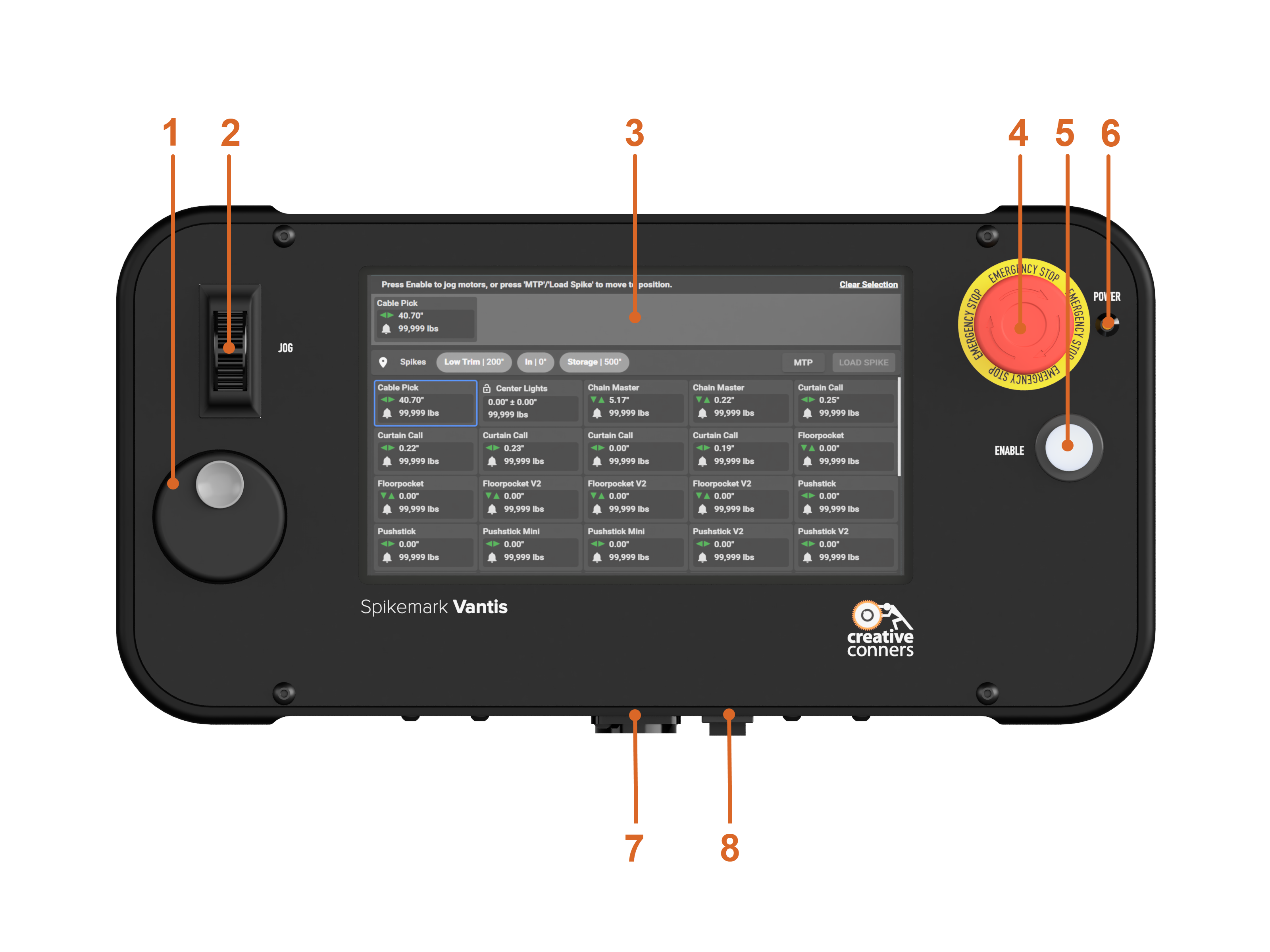
Before getting started, familiarize yourself with the hardware and controls of Spikemark Vantis. The sections below describe the key components and their functions.
1. **Input Wheel**\
Used to adjust on-screen values during setup. A Bluetooth keyboard (included with Spikemark Vantis) may also be used for data entry.
2. **Jog Paddle**\
Allows for jogging of single or multiple machines in conjunction with the **Enable Button**. Additional details are provided in **Jog Workspace**.
3. **Touch Screen**\
Allows for selection and navigation. Tap items directly with your finger.
4. **E-stop Button**\
Ties Spikemark Vantis back into the Showstopper network, allowing for quick access to Emergency Stops during operation.
5. **Enable Button**\
Used to initiate and allow machine movement. Additional details are provided in [Jog Workspace](/docs/showstopper/spikemark-vantis/4-jog-workspace.md#jog-workspace)
6. **Power Indicator Light**\
Illuminates ***Green*** when the system is powered on.
7. **Pendant Cable Connection**\
Connection point for the Spikemark Vantis cable. This cable supplies both control signals and power to the unit.\
a) Spikemark Vantis includes a [Pendant Adapter Box](#control-connection) for certain configurations. See below for guidance on when it is required.
8. **Power Switch**\
Used to turn the device on and off.\
a) “I” indicates the system is **ON**\
b) “O” indicates the system is **OFF**
## CONNECT SPIKEMARK VANTIS
Now it's time to plug in! There are several different ways to connect **Spikemark Vantis** to your system. The most common are listed with images below:
### **Control Point**

1. Remove the pendant terminator from the **Pendant Output Receptacle** on the **Control Point**, then connect the Spikemark Vantis cable from the **Pendant Cable Connection** on **Spikemark Vantis** to the **Pendant Output Receptacle**.
### **Control Connection**

1. Connect the Spikemark Vantis cable from the **Pendant Adapter Box**, to the **Pendant Cable Connection** on **Spikemark Vantis**.
2. Connect an Ethernet cable from the **Pendant Adapter Box** to a **Control Connection**
3. Connect the Showstopper Accessory Cable from the **Pendant Adapter Box** to the **Control Connection**
### **Temporary Set Ups**

1. Connect the Spikemark Vantis cable from the **Pendant Adapter Box**, to the **Pendant Cable Connection** on **Spikemark Vantis**.
2. Ensure both the computer running Spikemark and the **Showstopper Base** are connected to a network switch.
3. Connect an Ethernet cable from the **Pendant Adapter Box** to the network switch.
4. Connect the Showstopper Accessory Cable from the **Pendant Adapter Box** to an accessory port on the **Showstopper Base**.
{% hint style="warning" %}
### Network Connection Required prior to Spikemark Vantis Startup
All network cables must be connected **before** powering on Spikemark Vantis.
If network connectivity is not detected during startup, Spikemark Vantis will not initialize the configuration screen. See our troubleshooting FAQ for more information.
{% endhint %}
## Accessing Network Settings in Spikemark
Once all connections are complete and power has been applied to the Showstopper Base and Spikemark PC, power on the PC and **Spikemark Vantis**.
Open Spikemark and confirm the Spikemark PC IP address under: **File** -> **Spikemark Options**.

Open **Spikemark Pendant Settings** by either

1. Selecting **Configure** from the **Pendant** dropdown menu, or
2. Selecting **Spikemark Pendant** under **Control Devices** on the right side of the screen.

Confirm your IP Addresses match.
## Accessing Network Settings in Spikemark Vantis
After boot-up, the network configuration screen will appear.
Confirm that the IP addresses match between Spikemark Vantis and the Spikemark PC.
To modify values on **Spikemark Vantis**:
1. Select the field you want to edit using the **touchscreen**
2. Then adjust the value using the **Input Wheel**, or\
use the **bluetooth keyboard** to enter the value directly.
Ensure all network settings are correct to maintain proper system communication.
***
If you need help setting your computer’s IP address, refer to the network setup guide:
{% content-ref url="/pages/-Mhn8RB9Fckaggt3dzfX" %}
[Setting Computer IP Address](/docs/spikemark/ip-address-and-network-connection/setting-computer-ip-address.md)
{% endcontent-ref %}
***
## Connect to Spikemark Vantis
Once the IP addresses match:
1. Select Enable in the **Spikemark Pendant Settings** window on the PC
2. Press Connect on the **Spikemark Vantis** screen
When connected, the display will transition from the network configuration screen to the operational interface, starting with the **Jog Workspace**.
---
# Agent Instructions
This documentation is published with GitBook. GitBook is the documentation platform designed so that both humans and AI agents can read, navigate, and reason over technical content effectively. Learn more at gitbook.com.
## Querying This Documentation
If you need additional information that is not directly available in this page, you can query the documentation by asking a question.
Perform an HTTP GET request on the following URL with the `ask` and `goal` query parameters:
```
GET https://docs.creativeconners.com/docs/showstopper/spikemark-vantis/2-making-the-connections.md?ask=&goal=
```
`ask` is the immediate question: it should be specific, self-contained, and written in natural language.
`goal` is what the user is ultimately trying to achieve, the reason they need the answer. Sharing it helps GitBook give you a better, more relevant answer. A goal is most helpful when it describes the outcome the user wants rather than restating the question. For example, with `ask=how do I create an API token`, a goal like `automate deployments from our CI pipeline` lets GitBook tailor the answer to that use case.
The response will contain a direct answer to the question and relevant excerpts and sources from the documentation.
Use this mechanism when the answer is not explicitly present in the current page, you need clarification or additional context, or you want to retrieve related documentation sections.